Published Date: 5 Aug 2024
___
### Introduction
This is the first instalment in a six-part series documenting my attempts at the popular memory forensics CTF, [MemLabs](https://github.com/stuxnet999/MemLabs?tab=readme-ov-file). While MemLabs has been around for a while, it remains a decent resource for practicing memory forensics.
I’ll be using the memory forensics tool [Volatility](https://github.com/volatilityfoundation/volatility) for this lab.
> [!info] CTF Description
> My sister’s computer crashed. We were very fortunate to recover this memory dump. Your job is get all her important files from the system. From what we remember, we suddenly saw a black window pop up with some thing being executed. When the crash happened, she was trying to draw something. That's all we remember from the time of crash.
### Challenge
Before jumping head first into the memory image, we need to determine the operating system profile so that Volatility can accurately parse and analyse it. The `imageinfo` module can be used for this suggests the best profile to use based. Image options include different versions of windows e.g. `Win2008R2SP1x64`, `Win7SP1x64`.
The `imageinfo` module allows Volatility to locate and access the **Kernel Debugging Block (KDBG)**, a data structure within the Windows operating system's kernel memory primarily used for debugging purposes. Using the **KDBG**, Volatility can accurately identify the most suitable profile for parsing the memory image. This profile is essential for Volatility to correctly interpret the memory structures.
```shell
vol.py -f MemoryDump_Lab1.raw imageinfo
INFO : volatility.debug : Determining profile based on KDBG search...
Suggested Profile(s) : Win7SP1x64, Win7SP0x64, Win2008R2SP0x64, Win2008R2SP1x64_24000, Win2008R2SP1x64_23418, Win2008R2SP1x64, Win7SP1x64_24000, Win7SP1x64_23418
AS Layer1 : WindowsAMD64PagedMemory (Kernel AS)
AS Layer2 : FileAddressSpace (/home/remnux/memlabs/MemLabs-Lab1/MemoryDump_Lab1.raw)
PAE type : No PAE
DTB : 0x187000L
KDBG : 0xf800028100a0L
Number of Processors : 1
Image Type (Service Pack) : 1
KPCR for CPU 0 : 0xfffff80002811d00L
KUSER_SHARED_DATA : 0xfffff78000000000L
Image date and time : 2019-12-11 14:38:00 UTC+0000
Image local date and time : 2019-12-11 20:08:00 +0530
```
As shown above, Volatility suggests using the `Win7SP1x64` profile. While multiple options are provided, the first one is typically a safe bet. I also like to use Volatility3 to double-check. To further confirm the profile, you can refer to the `NTBuildLab` section below.
```shell
vol3 -f MemoryDump_Lab1.raw windows.info
Kernel Base 0xf8000261f000
DTB 0x187000
Symbols file:///usr/local/lib/python3.8/dist-packages/volatility3/framework/symbols/windows/ntkrnlmp.pdb/3844DBB920174967BE7AA4A2C20430FA-2.json.xz
Is64Bit True
IsPAE False
layer_name 0 WindowsIntel32e
memory_layer 1 FileLayer
KdDebuggerDataBlock 0xf800028100a0
NTBuildLab 7601.17514.amd64fre.win7sp1_rtm.
CSDVersion 1
KdVersionBlock 0xf80002810068
Major/Minor 15.7601
MachineType 34404
KeNumberProcessors 1
SystemTime 2019-12-11 14:38:00
NtSystemRoot C:\Windows
NtProductType NtProductWinNt
NtMajorVersion 6
NtMinorVersion 1
PE MajorOperatingSystemVersion 6
PE MinorOperatingSystemVersion 1
PE Machine 34404
PE TimeDateStamp Sat Nov 20 09:30:02 2010
```
Once the correct profile is identified, we can get to work. Based on the CTF description, we know two things:
1. She saw a black window pop up, possibly indicating a terminal.
2. She was trying to draw something, suggesting a drawing application might have been in use.
We'll begin by identifying the processes that were running at the time of the crash. This should provide us with clues about the drawing application and reveal any suspicious activity. For clarity, some processes have been excluded from the output as indicated by the `...snip...`.
```shell
vol.py -f MemoryDump_Lab1.raw --profile=Win7SP1x64 pslist
[...snip...]
0xfffffa8002222780 cmd.exe 1984 604 1 21 1 0 2019-12-11 14:34:54 UTC+0000
0xfffffa8002227140 conhost.exe 2692 368 2 50 1 0 2019-12-11 14:34:54 UTC+0000
0xfffffa80022bab30 mspaint.exe 2424 604 6 128 1 0 2019-12-11 14:35:14 UTC+0000
0xfffffa8000eac770 svchost.exe 2660 484 6 100 0 0 2019-12-11 14:35:14 UTC+0000
0xfffffa8001e68060 csrss.exe 2760 2680 7 172 2 0 2019-12-11 14:37:05 UTC+0000
0xfffffa8000ecbb30 winlogon.exe 2808 2680 4 119 2 0 2019-12-11 14:37:05 UTC+0000
0xfffffa8000f3aab0 taskhost.exe 2908 484 9 158 2 0 2019-12-11 14:37:13 UTC+0000
0xfffffa8000f4db30 dwm.exe 3004 852 5 72 2 0 2019-12-11 14:37:14 UTC+0000
0xfffffa8000f4c670 explorer.exe 2504 3000 34 825 2 0 2019-12-11 14:37:14 UTC+0000
0xfffffa8000f9a4e0 VBoxTray.exe 2304 2504 14 144 2 0 2019-12-11 14:37:14 UTC+0000
0xfffffa8000fff630 SearchProtocol 2524 480 7 226 2 0 2019-12-11 14:37:21 UTC+0000
0xfffffa8000ecea60 SearchFilterHo 1720 480 5 90 0 0 2019-12-11 14:37:21 UTC+0000
0xfffffa8001010b30 WinRAR.exe 1512 2504 6 207 2 0 2019-12-11 14:37:23 UTC+0000
0xfffffa8001020b30 SearchProtocol 2868 480 8 279 0 0 2019-12-11 14:37:23 UTC+0000
0xfffffa8001048060 DumpIt.exe 796 604 2 45 1 1 2019-12-11 14:37:54 UTC+0000
0xfffffa800104a780 conhost.exe 2260 368 2 50 1 0 2019-12-11 14:37:54 UTC+0000
```
Lo and behold, we identified four processes of interest: `mspaint.exe`, `DumpIt.exe`, `cmd.exe`, and `WinRAR.exe`. I must admit, I didn't catch `cmd.exe` until a later review. It's also clear that `DumpIt.exe` was used to dump the memory.
I chose to focus on `mspaint.exe` since I missed `cmd.exe` in my first pass. Using the PID, we can extract the memory of a specific process.
```shell
vol.py -f MemoryDump_Lab1.raw --profile=Win7SP1x64 memdump -p 2424 -D msPaint-memdump
```
This command drops a `.dmp` file. Some research led me to a [post](https://w00tsec.blogspot.com/2015/02/extracting-raw-pictures-from-memory.html) by w00tsec that explains how to use GIMP to view the pixels and bitmaps in a memory dump. For further detail, I recommend reading the post.
Credit goes to w00tsec for the insight. To extract an image, first change the file extension of the `.dmp` file to `.data` and open it in GIMP. The post also discusses adjusting the offset and width, but this process involves a lot of trial and error. After some experimentation, I was able to refine the values to produce a clear image.
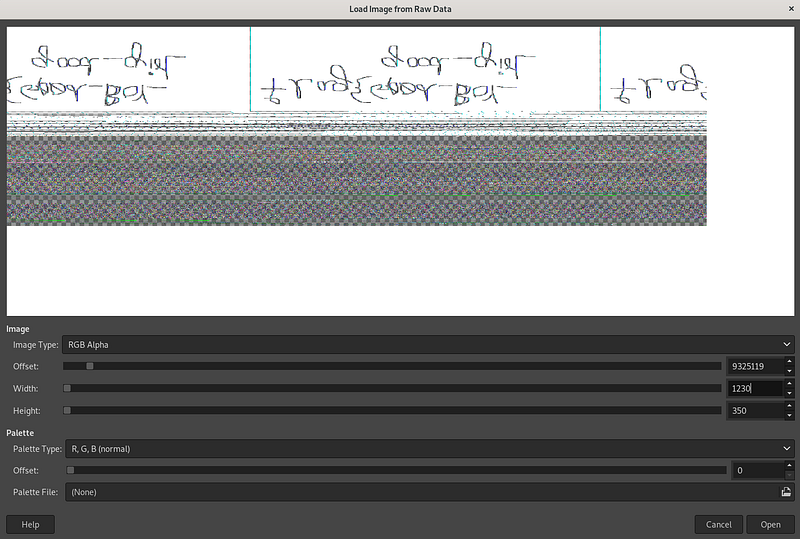
Bitmap images store their pixel data in an upside-down format, meaning that the pixel data in a `.bmp` file begins with the bottom row of the image and proceeds upwards. This design choice was made to optimise performance. As a result, you’ll need to flip the image to view it correctly.
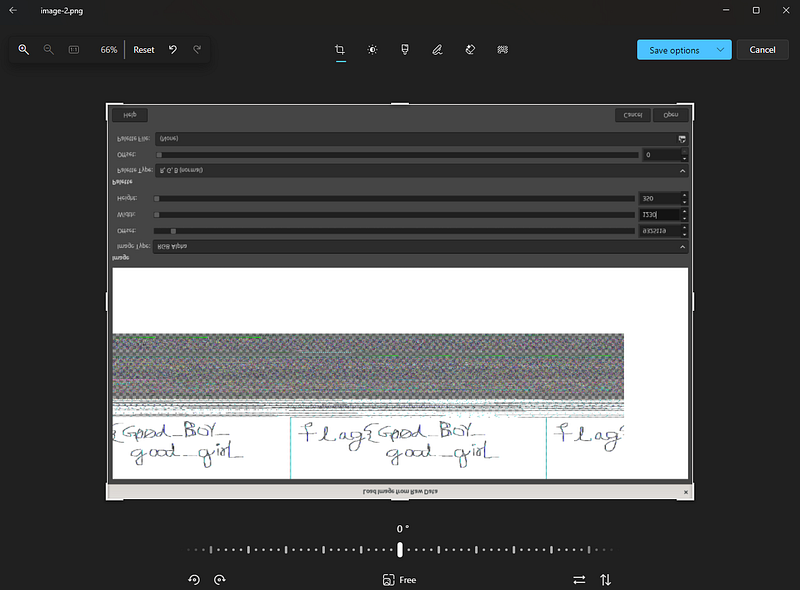
> [!done] Flag #1 (actually Flag #2)
> flag{G00d_BoY_good_girL}
Upon reviewing the process dump again, I noticed `cmd.exe`. This led me to use the `consoles` module which is designed to extract command history from the command prompt.
```shell
vol.py -f MemoryDump_Lab1.raw --profile=Win7SP1x64 consoles
```
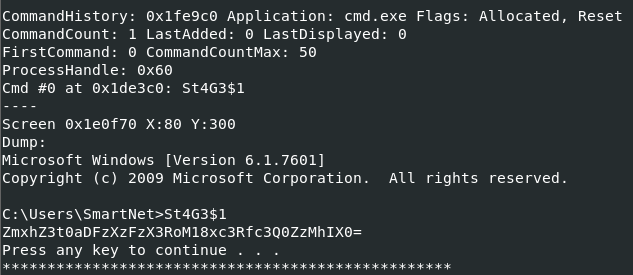
In the output, we can see what appears like a base64-encoded string. Decoding this string reveals our flag.
> [!done] Flag #1
> flag{th1s_1s_th3_1st_st4g3!!}
`WinRAR.exe` is the only process from our list of interesting processes that we haven't yet examined. I chose to look at it's handles, hoping to find a reference to a file that may have been open in WinRAR. The `handles` module provides exactly that information.
> [!info] What are handles?
> In Windows, a handle is a reference to a system resource such as files, registry keys, and other objects. By examining the handles, we can determine what resources the process may be interacting with.
```shell
Offset(V) Pid Handle Access Type Details
------------------ ------ ------------------ ------------------ ---------------- -------
0xfffff8a002465d40 1512 0x4 0x9 Key MACHINE\SOFTWARE\MICROSOFT\WINDOWS NT\CURRENTVERSION\IMAGE FILE EXECUTION OPTIONS
0xfffff8a00027f360 1512 0x8 0x3 Directory KnownDlls
0xfffffa8001004790 1512 0xc 0x100020 File \Device\HarddiskVolume2\Users\Alissa Simpson\Documents
[...snip...]
```
We can see that there was a handle open to a file in the `\Device\HarddiskVolume2\Users\Alissa Simpson\Documents` directory. Using the `filescan` module, I grepped for references to the `Documents` directory, which led to discovering a `.rar` file named `Important.rar`.
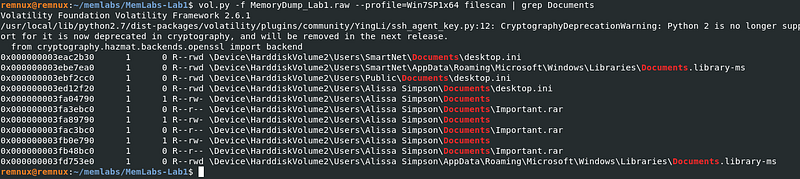
With this information, it's possible to use one of the offsets for the `Important.rar` file and dump it.
```shell
vol.py -f MemoryDump_Lab1.raw --profile=Win7SP1x64 dumpfiles -Q 0x000000003fa3ebc0 -D winRAR-dump
```
Using `file`, we can confirm that the file is indeed an archive.
![[checking file type.png]]
Rename this file to give it a `.rar` extension instead of `.dat`. This will allow us to extract its contents.
![[7.png]]
As shown above, we're prompted for a password, which is explicitly stated to be the uppercase NTLM hash of Alissa's password. We can use the `hashdump` module for this.
```shell
vol.py -f MemoryDump_Lab1.raw --profile=Win7SP1x64 hashdump
```
![[8.png]]
The output of `hashdump` is shown above. NTLM hashes are typically represented as a single string that includes two parts: the first half is the LM hash (which is often not used due to its weak security), and the second half is the NTLM hash. Since the password is derived from the NTLM hash, we should use the second half of the hash and convert it to uppercase to meet the password requirements.
After converting the hash to uppercase, we can use it to extract `Important.rar` to get the last flag.
![[11.png]]
> [!done] Flag #3
> flag{w3ll_3rd_stage_was_easy}
### Conclusion
I'll see you in [[MemLabs Part 2 - A New World]]. Thanks for reading—peace.